For product designers who want to use AI prototyping and coding tools across the design process, from framing the problem to handing off a prototype. You will be able to choose where AI fits and use it with clear direction at each stage.
8 lessons · 3 hr 43 min, plus 1 optional (23 min more with the optional lessons)
Start here: Short framing opener. Begin with the user's problem, not the AI tool, and every later video builds on this.
A short NN/g video arguing that product teams should begin by identifying the user's problem rather than starting from a technology, with AI as the main example of solutioneering. It suits UX and product practitioners who already work on product decisions.
Adds AI-assisted reference search, narrowing many screens down to what fits a brief before any building starts.
A small design agency walks through how it runs design research with AI-assisted reference search, narrowing 100 screens to the ones that fit a brief. It then shows how the team moves from black-and-white screens to a refined, animated mobile prototype for client review.
Optional comparison of seven AI design tools given the same prompt, useful if you are still choosing a tool.
Tests seven AI design and app-building tools, including Lovable, Replit, V0 and Bolt.new, by generating a gym dashboard from one prompt, then ranks their results. It is aimed at designers choosing an AI design tool for their workflow.
Sets principles and visual direction for a finance app before any screens are generated, so AI output has guardrails.
A designer sets the visual and product direction for a minimal finance app called NOVA before gathering inspiration or generating screens. The video covers principles, patterns to embrace and avoid, and reducing visual noise in modern banking interfaces.
Follows one designer through 15 steps, from an AI-generated first design to one they are happy with.
A designer walks through the 15 steps of designing their first real app, from an AI-generated design to one they are happy with, and shows the tools used along the way. The description says it is aimed at people building and designing their own apps.
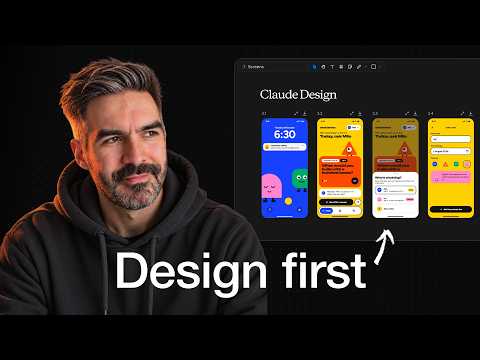
Shows a design-first process for an iOS app: explore directions, map journeys and prototype before build instructions.
A walkthrough of a five-step design-first process for building an iOS app with AI, using Claude Design to explore visual directions, pick fonts, map user journeys and prototype onboarding before turning the designs into a build plan. It is aimed at builders who want to reduce written specs and make AI-built apps look designed from the start.
Shows a team prototyping concepts with AI before a PRD exists, then handing off to engineering.
A guest designer from Deel shows how the team prototypes concepts early, before a detailed PRD exists, using AI tools such as Lovable and Claude Code. The episode also covers a UI playground demo, handoff through video walkthroughs, and async review across time zones.
Adds testable prototypes built in Cursor, plus version naming and critique of AI-generated work.
Jay interviews Jennifer Spriggs, a staff product designer, about how she uses AI tools in the design process at CNN. The conversation covers building prototypes in Cursor, versioning and branching them, and presenting them in design critiques.
Capstone: follows a whole team's Claude Code workflow across the design process and shows where AI fits.
An interview in which the Head of Design and a Staff Product Designer at Beyond Identity explain how their team uses Claude Code across the design process. It is aimed at designers who want to see AI-assisted design workflows in a real team.
For designers new to AI who want to understand its role in design work and try beginner-friendly tools. You will be able to judge whether a tool fits a task and turn a prompt into a working prototype.
For product people who want to know when to frame a problem and when to run a design sprint to decide and align a team. By the end you will be able to pick the right method and use it to reach a shared decision.
For designers new to prototyping who want to turn static screens into a clickable, presentable flow. You will connect frames, add scrolling and motion, and present your work.
For beginners who want to add motion to Figma prototypes. You will be able to build clickable flows, create Smart Animate transitions, and animate layers and icons on the timeline before exporting.
;}.cls-2{fill:%2358d687;}.cls-3{fill:url(%23Degradado_sin_nombre_10);}.cls-4{fill:url(%23Degradado_sin_nombre_31);}.cls-5{fill:%238030d1;}.cls-6{fill:url(%23Degradado_sin_nombre_23);}%3c/style%3e%3clinearGradient%20id='Degradado_sin_nombre_17'%20x1='129.39'%20y1='83.35'%20x2='56.4'%20y2='162.54'%20gradientUnits='userSpaceOnUse'%3e%3cstop%20offset='0'%20stop-color='%23287d8c'/%3e%3cstop%20offset='1'%20stop-color='%2350b5db'/%3e%3c/linearGradient%3e%3clinearGradient%20id='Degradado_sin_nombre_10'%20x1='449.01'%20y1='190.97'%20x2='266.02'%20y2='78.2'%20gradientUnits='userSpaceOnUse'%3e%3cstop%20offset='0'%20stop-color='%23ffe286'/%3e%3cstop%20offset='1'%20stop-color='%23ffcd1d'/%3e%3c/linearGradient%3e%3clinearGradient%20id='Degradado_sin_nombre_31'%20x1='99.7'%20y1='309.69'%20x2='146.19'%20y2='485.35'%20gradientUnits='userSpaceOnUse'%3e%3cstop%20offset='0.01'%20stop-color='%23ff9464'/%3e%3cstop%20offset='1'%20stop-color='%23b3553a'/%3e%3c/linearGradient%3e%3clinearGradient%20id='Degradado_sin_nombre_23'%20x1='547.05'%20y1='208.96'%20x2='252.56'%20y2='438.86'%20gradientUnits='userSpaceOnUse'%3e%3cstop%20offset='0'%20stop-color='%23ff7da1'/%3e%3cstop%20offset='1'%20stop-color='%23f20b4f'/%3e%3c/linearGradient%3e%3c/defs%3e%3ctitle%3efavicon%3c/title%3e%3cg%20id='_Group_'%20data-name='<Group>'%3e%3cg%20id='_Group_2'%20data-name='<Group>'%3e%3cg%20id='_Group_3'%20data-name='<Group>'%3e%3cpath%20id='_Path_'%20data-name='<Path>'%20class='cls-1'%20d='M232.54,165.43a124.47,124.47,0,0,1-106.95,60.76h0A101.77,101.77,0,0,1,23.82,124.41V0L132.31,95.94A517.46,517.46,0,0,0,232.54,165.43Z'/%3e%3cpath%20id='_Path_2'%20data-name='<Path>'%20class='cls-2'%20d='M250,0V101.78a123.87,123.87,0,0,1-17.46,63.65A517.46,517.46,0,0,1,132.31,95.94L23.82,0Z'/%3e%3cpath%20id='_Path_3'%20data-name='<Path>'%20class='cls-3'%20d='M476.18,226.19a518.87,518.87,0,0,1-243.64-60.76A123.87,123.87,0,0,0,250,101.78V0A226.12,226.12,0,0,1,476.18,226.19Z'/%3e%3cpath%20id='_Path_4'%20data-name='<Path>'%20class='cls-4'%20d='M232.54,334.57a517.71,517.71,0,0,0-100.23,69.54L23.82,500V375.59A101.77,101.77,0,0,1,125.59,273.81h0A124.47,124.47,0,0,1,232.54,334.57Z'/%3e%3cpath%20id='_Path_5'%20data-name='<Path>'%20class='cls-5'%20d='M250,398.22V500H23.82l108.49-95.89a517.71,517.71,0,0,1,100.23-69.54A123.87,123.87,0,0,1,250,398.22Z'/%3e%3cpath%20id='_Path_6'%20data-name='<Path>'%20class='cls-6'%20d='M476.18,273.81A226.12,226.12,0,0,1,250,500V398.22a123.87,123.87,0,0,0-17.46-63.65A518.87,518.87,0,0,1,476.18,273.81Z'/%3e%3c/g%3e%3c/g%3e%3c/g%3e%3c/svg%3e)