Collection

Figma Auto Layout: From Basics to Responsive Cards

For UI designers who know Figma's basics and want frames and components that resize cleanly. You will learn to set up Auto Layout, size elements sensibly, and build responsive cards and wrapping grids.

What you’ll learn

  • Explain what Auto Layout does and set up frames with padding, spacing and alignment
  • Choose between Hug, Fill and Fixed sizing for frames and their child elements
  • Nest Auto Layout frames to assemble a flexible mobile screen
  • Build a responsive card component using Wrap and min and max widths
  • Create wrapping grids that reflow content as the available space changes

Videos

  • Creative Jené 6 min Intermediate

    A beginner-friendly walkthrough of Figma Auto Layout, showing how it keeps frames and components resizing automatically as a design changes, with examples of a button and a set of shapes.

  • Flux Academy 5 min Intermediate

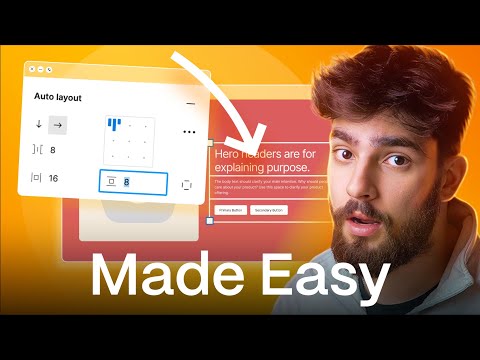
    Save 15,000 hours of works this year with this 5 min crash course on Figmas Auto-layout. Plus, I’ll go over how Auto-layout and Flexbox are exactly the same, which is important because most of your designs are going to be developed, so it’s best to design with the same tools you’ll be developing.

  • Jesse Showalter 13 min Intermediate

    A Figma tutorial that walks through Auto Layout, from building a button and setting padding and alignment to nesting layouts and making children fill their containers. It suits designers who already use Figma and want responsive components.

  • Arnau Ros 10 min Intermediate

    A Figma tutorial covering auto layout, showing how to set up designs so they resize and stay organised, and how that helps when handing work to developers. It is aimed at designers who already use Figma.

  • DesignOS 10 min Intermediate

    A Figma tutorial that explains Auto Layout by relating it to Flexbox, covering spacing, padding, alignment, wrapping and Hug, Fill and Fixed resizing. It is aimed at product designers who work closely with engineers and build scalable UI.

  • TheFigmaGirl 10 min Intermediate

    A step-by-step Figma tutorial covering auto layout basics, layout modes, sizing, horizontal and vertical controls, and advanced settings like negative spacing, padding and alignment, applied to a YouTube video card example. It suits designers who want to build responsive UI components faster.

  • Boroji 20 min Intermediate

    A Figma tutorial that rebuilds a mobile "My Balance" app screen from a wireframe, using nested auto layout frames for buttons, transaction rows, text and containers. It shows how to use hug contents and fill container sizing with padding and gaps.

  • Learn With Essa 18 min Intermediate

    A Figma tutorial covering how Auto Layout works, including spacing, padding, alignment and sizing, and how to build a responsive card that adapts to different sizes. It is aimed at UI, UX and web designers who want to learn Auto Layout.

  • TD Sunshine 19 min Intermediate

    A Figma tutorial covering auto layout properties such as gap, padding and alignment, along with hug, fixed and fill sizing, and when to break auto layout rules. It follows along with a shared Figma file.

  • AI Mastery 3 min Intermediate

    Shows how to turn on Wrap in Figma's Auto Layout so content moves to the next line when it runs out of space, for building responsive grids and tagging systems. Suited to designers who already use Auto Layout.

  • Limuel Castro 12 min Intermediate

    A Figma tutorial that shows how to use Auto Layout to build a responsive product card with an image container, badges and wrapping, so it switches between side-by-side and stacked layouts when resized. It is aimed at designers who are new to Auto Layout.

  • AnjiUx 6 min Intermediate

    Shows how to build a responsive web card in Figma using auto layout, with min and max values and the wrap feature, without plugins. Suited to designers who already use Figma and want responsive components.

  • Contra 17 min Intermediate

    A Figma tutorial showing how to build a responsive web card component using Auto Layout, including frame structure, the Wrap feature and min/max width settings. It is aimed at designers who already work in Figma and want their components to scale across screen sizes.

  • Design League 9 min Intermediate

    A Figma tutorial on building responsive layouts with Auto Layout, covering wrapping grids, percentage-based sizing, fill versus hug sizing, min and max width constraints and breakpoint preparation. It is aimed at UI and product designers who already use Figma and want to prepare files for developer handoff.

  • Figma Frenzy 7 min Intermediate

    A Figma tutorial covering auto layout techniques and tips for building layouts that adapt to content, aimed at designers who already know the basics of auto layout.

  • TD Sunshine 24 min Intermediate

    A practice-based Figma tutorial that works through auto layout step by step, with the community file provided to follow along. It suits designers who already use Figma and want to build responsive layouts.

Search and sort within Figma Auto Layout: From Basics to Responsive Cards

All paths
  • Learning pathBeginner → IntermediateUI

    Learn UI Basics: Colour, Layout, Type and Figma

    For beginners who want to understand interface design and build simple screens in Figma. You will be able to choose colours and type, lay out screens clearly, and polish a design.

    12 lessons · 2 hr 43 min

  • Learning pathBeginnerDesign Tool Workflows

    Building Real Screens in Figma for Beginners

    This path is for beginners who want to learn the Figma editor by building real screens. You will move from the editor basics to auto layout, components, styles, variables and exporting assets for handoff.

    5 lessons · 57 min, plus 1 optional

  • Learning pathBeginner → IntermediateDesign Trends

    Design Trends from 2023 to 2027

    This path is for beginners who want to understand design trends and then move on to intermediate forecasts. You will learn why trends matter and how web, UX/UI, graphic and 3D styles have shifted over recent years.

    9 lessons · 80 min, plus 1 optional

  • Learning pathBeginnerDesign News

    Keeping Up with Design Tool News

    For beginner designers who want to follow Figma and Adobe XD news without getting lost. You will learn to read short roundups, understand the stories behind tool updates, and judge what a change means for your work.

    7 lessons · 45 min, plus 2 optional