;}.cls-2{fill:%2358d687;}.cls-3{fill:url(%23Degradado_sin_nombre_10);}.cls-4{fill:url(%23Degradado_sin_nombre_31);}.cls-5{fill:%238030d1;}.cls-6{fill:url(%23Degradado_sin_nombre_23);}%3c/style%3e%3clinearGradient%20id='Degradado_sin_nombre_17'%20x1='129.39'%20y1='83.35'%20x2='56.4'%20y2='162.54'%20gradientUnits='userSpaceOnUse'%3e%3cstop%20offset='0'%20stop-color='%23287d8c'/%3e%3cstop%20offset='1'%20stop-color='%2350b5db'/%3e%3c/linearGradient%3e%3clinearGradient%20id='Degradado_sin_nombre_10'%20x1='449.01'%20y1='190.97'%20x2='266.02'%20y2='78.2'%20gradientUnits='userSpaceOnUse'%3e%3cstop%20offset='0'%20stop-color='%23ffe286'/%3e%3cstop%20offset='1'%20stop-color='%23ffcd1d'/%3e%3c/linearGradient%3e%3clinearGradient%20id='Degradado_sin_nombre_31'%20x1='99.7'%20y1='309.69'%20x2='146.19'%20y2='485.35'%20gradientUnits='userSpaceOnUse'%3e%3cstop%20offset='0.01'%20stop-color='%23ff9464'/%3e%3cstop%20offset='1'%20stop-color='%23b3553a'/%3e%3c/linearGradient%3e%3clinearGradient%20id='Degradado_sin_nombre_23'%20x1='547.05'%20y1='208.96'%20x2='252.56'%20y2='438.86'%20gradientUnits='userSpaceOnUse'%3e%3cstop%20offset='0'%20stop-color='%23ff7da1'/%3e%3cstop%20offset='1'%20stop-color='%23f20b4f'/%3e%3c/linearGradient%3e%3c/defs%3e%3ctitle%3efavicon%3c/title%3e%3cg%20id='_Group_'%20data-name='<Group>'%3e%3cg%20id='_Group_2'%20data-name='<Group>'%3e%3cg%20id='_Group_3'%20data-name='<Group>'%3e%3cpath%20id='_Path_'%20data-name='<Path>'%20class='cls-1'%20d='M232.54,165.43a124.47,124.47,0,0,1-106.95,60.76h0A101.77,101.77,0,0,1,23.82,124.41V0L132.31,95.94A517.46,517.46,0,0,0,232.54,165.43Z'/%3e%3cpath%20id='_Path_2'%20data-name='<Path>'%20class='cls-2'%20d='M250,0V101.78a123.87,123.87,0,0,1-17.46,63.65A517.46,517.46,0,0,1,132.31,95.94L23.82,0Z'/%3e%3cpath%20id='_Path_3'%20data-name='<Path>'%20class='cls-3'%20d='M476.18,226.19a518.87,518.87,0,0,1-243.64-60.76A123.87,123.87,0,0,0,250,101.78V0A226.12,226.12,0,0,1,476.18,226.19Z'/%3e%3cpath%20id='_Path_4'%20data-name='<Path>'%20class='cls-4'%20d='M232.54,334.57a517.71,517.71,0,0,0-100.23,69.54L23.82,500V375.59A101.77,101.77,0,0,1,125.59,273.81h0A124.47,124.47,0,0,1,232.54,334.57Z'/%3e%3cpath%20id='_Path_5'%20data-name='<Path>'%20class='cls-5'%20d='M250,398.22V500H23.82l108.49-95.89a517.71,517.71,0,0,1,100.23-69.54A123.87,123.87,0,0,1,250,398.22Z'/%3e%3cpath%20id='_Path_6'%20data-name='<Path>'%20class='cls-6'%20d='M476.18,273.81A226.12,226.12,0,0,1,250,500V398.22a123.87,123.87,0,0,0-17.46-63.65A518.87,518.87,0,0,1,476.18,273.81Z'/%3e%3c/g%3e%3c/g%3e%3c/g%3e%3c/svg%3e)
Photoshop Basics for Photo Editing
This path is for beginners who want to edit photos in Adobe Photoshop with confidence. You will learn to navigate the interface, work with layers and masks, make selections, retouch and export finished images.
What you’ll learn
- Find your way around the Photoshop interface and its main panels
- Set image size and resolution correctly for print or screen use
- Use layers, layer masks and selections to cut out a subject
- Crop, convert to black and white and remove blemishes from a photo
- Export finished images for print, web and social media
Lessons
Gareth David Studio 12 min Beginner
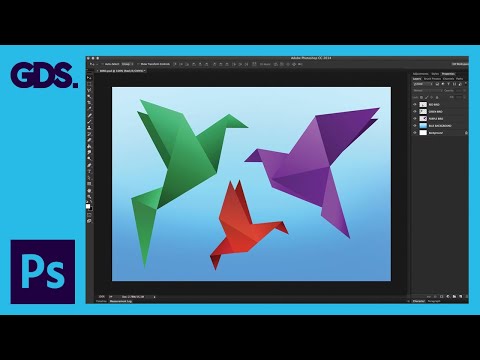
Start here: learn where the main panels and tools are, since every later video assumes this.
A beginner introduction to the Adobe Photoshop interface, walking through its main panels and tools so new users know what to look for. It is the first episode of a 33-part Photoshop course by a London-based graphic designer.
Spoon Graphics 11 min Beginner
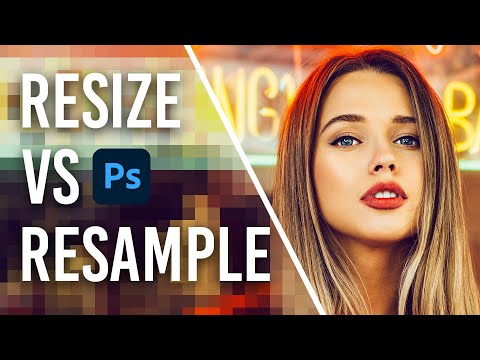
Next, set image size and resolution so you know how to prepare a photo before editing it.
Explains how to resize an image in Adobe Photoshop, covering the common mistakes to avoid and when to use the Resample option versus resizing without resampling, with attention to print size and resolution. Aimed at graphic designers and photographers preparing images for print.
Gareth David Studio 24 min Beginner
Layers underpin masks, cut-outs and adjustments, so learn how the Layers panel works now.
A beginner's walkthrough of the Layers panel in Adobe Photoshop, covering layer types, selection, visibility, transparency, grouping, locking, linking and colour labels. It is part of a 33-part introductory Photoshop course.
Bring Your Own Laptop 5 min Beginner
Try a quick first edit by cropping a real photo, which builds confidence with the tools.
A Photoshop CC Essentials tutorial showing how to crop an image, including tricks such as deleting cropped pixels and rotating the crop. It is aimed at people learning the software.
Spoon Graphics 5 min Beginner
Adds tonal control by converting a photo to black and white using adjustment layers.
A Photoshop tutorial comparing ways to convert photos to black and white, including Desaturate, Grayscale, the Channel Mixer, Black and White adjustment layers, B&W Mix and Gradient Maps. It covers the results each method gives, for designers and photographers working with colour images.
- Lesson 6:
Layer Masking In Adobe Photoshop
Gareth David Studio 9 min Beginner
Learn layer masks to hide parts of a layer without deleting pixels, a non-destructive method.
This tutorial shows how to apply a layer mask in Adobe Photoshop to hide parts of a layer without deleting any of the image. It suits designers who are new to non-destructive editing in Photoshop.
Bring Your Own Laptop 12 min Beginner
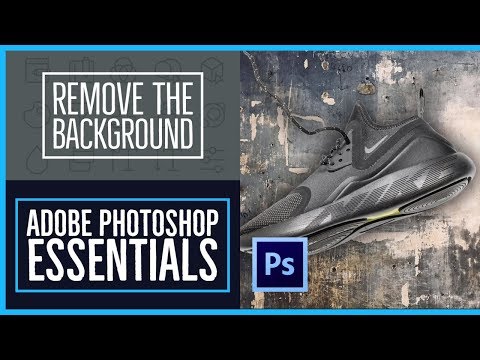
Combine selections, layers and masking to cut a subject out and place it on a new background.
A step-by-step Photoshop lesson showing how to cut a subject out of its background with the Quick Selection Tool and place it on a new background using separate layers. It suits people new to Photoshop.
Sketch Together 6 min Beginner
Add basic retouching by removing blemishes with the Spot Healing Tool on your layers.
A Photoshop tutorial for designers who mainly use screen design tools and need basic photo retouching. It shows how to remove blemishes and blend areas of an image with the Spot Healing Tool.
- Lesson 9:
How to export images from Photoshop for print web & social media - Photoshop CC Essentials [85/86]
Bring Your Own Laptop 11 min Beginner
Finish by exporting your edited image for print, web and social media.
A Photoshop CC Essentials lesson that walks through exporting images for print first, then for web and social media, and finally for sharing with other Adobe apps such as Illustrator, InDesign and After Effects.




When you've finished
Next path: Intermediate Photo Editing: Retouching and Compositing (Intermediate)