For beginner to intermediate designers who want to prototype how interfaces respond, with motion and accessible interaction details. You will be able to build clickable prototypes and check them against accessibility principles.
8 lessons · 2 hr 19 min, plus 1 optional (63 min more with the optional lessons)
Start here: quick orientation to Figma's interface and what it is used for, so later prototyping steps make sense.
An introduction to Figma, a design tool for creating websites, mobile apps and prototypes, covering its user interface and how it differs from other design tools. It is aimed at beginners.
Adds the core prototyping move: what a prototype is, and how to make and view the first connections between frames.
Introduces the basics of prototyping in Figma, including what a prototype is, how to set up the first prototyping connections, and how to view them. Part of a three-week series on using Figma as a product person.
Adds the human side: a short film on the barriers blind users meet with technology, framing why interaction details matter.
A short film following chef and TV host Christine Hà, the first blind MasterChef contestant, on the accessibility challenges visually impaired people meet when using technology. It is aimed at anyone who wants a human view of why digital accessibility matters.
Adds practical use: watching screen reader and keyboard-only use in action, building on the barriers in the previous film.
A webinar by Silktide's CEO Oliver Emberton showing how people without sight or hands use the web, with practical demonstrations of assistive technology. It suits designers who want to understand accessibility from users' experience.
Adds a simple framework: the four POUR principles of WCAG, to use as a checklist for the accessible interaction work ahead.
An animated short that explains the four POUR principles of WCAG (Perceivable, Operable, Understandable, Robust) through a fantasy kingdom metaphor. It is aimed at anyone new to web accessibility.
Moves to intermediate: applying animation principles to real interface elements with GSAP and CSS.
Shows how a motion designer can approach building animated web interfaces, using GSAP and CSS animation with a linked live demo and code pen. Suited to designers who already know basic animation and want to bring it to the web.
Surveys advanced prototyping features and how prototyping has evolved, extending the beginner basics.
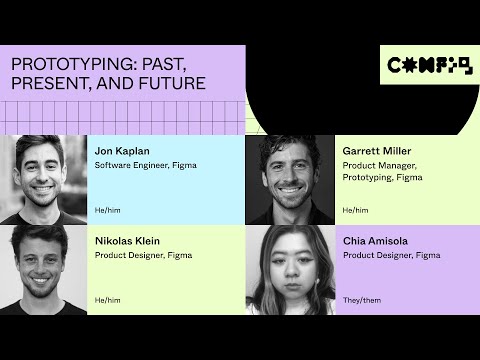
A Config 2023 session from members of Figma's Prototyping team on the advanced prototyping features announced at the conference, covering how prototyping has developed in the tool. It is aimed at designers who already use Figma.
Hands-on practice with video in prototypes and multi-flow prototypes, ending the path on the hardest prototyping skills.
A Figma office-hours livestream in which designers walk through adding videos to prototypes, building and editing multi-flow prototypes, and bringing others along. Two community members demo how they use the new prototyping features.
Optional deeper dive into WCAG 2.2 and fixing real accessibility problems, for learners who want more on the accessibility side.
A webinar on common accessibility problems on NHS websites and how to fix them, including screen readers, link text, PDFs and ARIA. It also explains how the WCAG 2.2 criteria, such as contrast, focus appearance and target size, will affect website teams.
For beginners who want to understand interface design and build simple screens in Figma. You will be able to choose colours and type, lay out screens clearly, and polish a design.
For designers new to accessibility who want to understand who it affects and the core WCAG basics. You will be able to explain the key ideas and spot common barriers in your own design work.
This path is for beginners who want to learn the Figma editor by building real screens. You will move from the editor basics to auto layout, components, styles, variables and exporting assets for handoff.
For designers new to prototyping who want to turn static screens into a clickable, presentable flow. You will connect frames, add scrolling and motion, and present your work.
;}.cls-2{fill:%2358d687;}.cls-3{fill:url(%23Degradado_sin_nombre_10);}.cls-4{fill:url(%23Degradado_sin_nombre_31);}.cls-5{fill:%238030d1;}.cls-6{fill:url(%23Degradado_sin_nombre_23);}%3c/style%3e%3clinearGradient%20id='Degradado_sin_nombre_17'%20x1='129.39'%20y1='83.35'%20x2='56.4'%20y2='162.54'%20gradientUnits='userSpaceOnUse'%3e%3cstop%20offset='0'%20stop-color='%23287d8c'/%3e%3cstop%20offset='1'%20stop-color='%2350b5db'/%3e%3c/linearGradient%3e%3clinearGradient%20id='Degradado_sin_nombre_10'%20x1='449.01'%20y1='190.97'%20x2='266.02'%20y2='78.2'%20gradientUnits='userSpaceOnUse'%3e%3cstop%20offset='0'%20stop-color='%23ffe286'/%3e%3cstop%20offset='1'%20stop-color='%23ffcd1d'/%3e%3c/linearGradient%3e%3clinearGradient%20id='Degradado_sin_nombre_31'%20x1='99.7'%20y1='309.69'%20x2='146.19'%20y2='485.35'%20gradientUnits='userSpaceOnUse'%3e%3cstop%20offset='0.01'%20stop-color='%23ff9464'/%3e%3cstop%20offset='1'%20stop-color='%23b3553a'/%3e%3c/linearGradient%3e%3clinearGradient%20id='Degradado_sin_nombre_23'%20x1='547.05'%20y1='208.96'%20x2='252.56'%20y2='438.86'%20gradientUnits='userSpaceOnUse'%3e%3cstop%20offset='0'%20stop-color='%23ff7da1'/%3e%3cstop%20offset='1'%20stop-color='%23f20b4f'/%3e%3c/linearGradient%3e%3c/defs%3e%3ctitle%3efavicon%3c/title%3e%3cg%20id='_Group_'%20data-name='<Group>'%3e%3cg%20id='_Group_2'%20data-name='<Group>'%3e%3cg%20id='_Group_3'%20data-name='<Group>'%3e%3cpath%20id='_Path_'%20data-name='<Path>'%20class='cls-1'%20d='M232.54,165.43a124.47,124.47,0,0,1-106.95,60.76h0A101.77,101.77,0,0,1,23.82,124.41V0L132.31,95.94A517.46,517.46,0,0,0,232.54,165.43Z'/%3e%3cpath%20id='_Path_2'%20data-name='<Path>'%20class='cls-2'%20d='M250,0V101.78a123.87,123.87,0,0,1-17.46,63.65A517.46,517.46,0,0,1,132.31,95.94L23.82,0Z'/%3e%3cpath%20id='_Path_3'%20data-name='<Path>'%20class='cls-3'%20d='M476.18,226.19a518.87,518.87,0,0,1-243.64-60.76A123.87,123.87,0,0,0,250,101.78V0A226.12,226.12,0,0,1,476.18,226.19Z'/%3e%3cpath%20id='_Path_4'%20data-name='<Path>'%20class='cls-4'%20d='M232.54,334.57a517.71,517.71,0,0,0-100.23,69.54L23.82,500V375.59A101.77,101.77,0,0,1,125.59,273.81h0A124.47,124.47,0,0,1,232.54,334.57Z'/%3e%3cpath%20id='_Path_5'%20data-name='<Path>'%20class='cls-5'%20d='M250,398.22V500H23.82l108.49-95.89a517.71,517.71,0,0,1,100.23-69.54A123.87,123.87,0,0,1,250,398.22Z'/%3e%3cpath%20id='_Path_6'%20data-name='<Path>'%20class='cls-6'%20d='M476.18,273.81A226.12,226.12,0,0,1,250,500V398.22a123.87,123.87,0,0,0-17.46-63.65A518.87,518.87,0,0,1,476.18,273.81Z'/%3e%3c/g%3e%3c/g%3e%3c/g%3e%3c/svg%3e)