Learning path

Building Repeatable AI-Assisted UI/UX Workflows

For intermediate UX and product designers who want to use Claude and Figma's agent in a consistent way. You will learn to build repeatable design workflows and choose AI tools sensibly for your own process.

What you’ll learn

  • Match AI design tools to the real bottlenecks in your own process
  • Write specific prompts that get usable results from Claude and Figma's agent
  • Run an AI-assisted workflow from requirements through UI, design system and prototype
  • Compare AI design tools on the same task before choosing one to adopt
  • Keep creative decisions in your hands while delegating repetitive design work

Lessons

  1. UX Intelligence 5 min Intermediate

    Start here: frames where AI fits in a design process and how to pick tools by bottleneck.

    Explains how UX designers can pick AI design tools by matching each tool to a specific bottleneck in their process, trialling one tool on a real flow, measuring the gain and reviewing output by hand. It also covers a per-job tool map, selection criteria and data and privacy rules.

  2. Eleken 5 min Intermediate

    Shows the whole team arc, from research and decisions to prototyping and iteration.

    A walkthrough of how the Eleken team uses AI across the product design workflow, from research and product decisions to interactive prototyping and iteration. It stresses that designers still need to guide the process and validate AI-generated solutions before fast prototypes reach users and engineers.

  3. AI Tooltip 13 min Intermediate

    Adds first hands-on Claude prompts for ideation, microcopy and design tokens.

    Shows five prompts for using Claude across UI/UX work, from expanding sketches and ideation through microcopy, prototyping and testing, to building a design system. The prompts are aimed at designers who want to speed up their process and generate more ideas.

  4. Figma 3 min Intermediate

    Introduces prompting Figma's agent directly, covering specific prompts, auto layout and context.

    Shows best practices for chatting with the Figma agent to generate and refine designs, including being specific, using auto layout, focusing context, providing UI examples and organising chats. The description notes that output quality depends on how the feature is used.

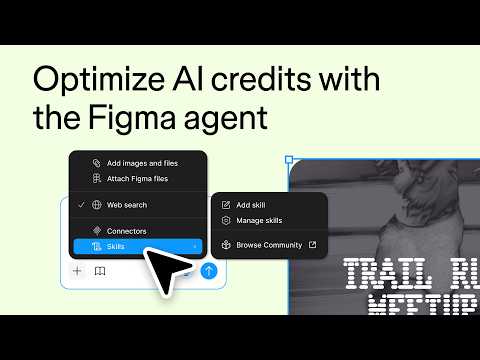
  5. Figma 6 min Intermediate

    Builds on the basics with front-loading context, using skills and managing chats efficiently.

    Best practices for prompting Figma's agent to get more out of it while using AI credits efficiently. Covers giving the right context, using skills, when to create generative plugins, and when to ask Fig support questions instead.

  6. AI Tooltip 14 min Intermediate

    Chains your prompting into a full workflow from requirements to prototype, with you as project manager.

    A walkthrough of an AI-assisted UI/UX workflow in which the designer acts as project manager and AI assists with requirements, UI design, a design system and a prototype. It uses Claude, Figma, UX Pilot and Netlify.

  7. UX Pilot AI 20 min Intermediate

    Moves to an advanced chained workflow using Claude and UX Pilot via MCP into Figma.

    The video shows a workflow that moves from diagnosing a UX failure from conversion data with Claude, through building a wireframe with UX Pilot via MCP and a persona audit, to styling two directions with DESIGN.md and exporting to Figma. It is aimed at designers who want to avoid switching tools at each handoff.

  8. Nick Babich 5 min Intermediate

    Compares Claude Design and Figma's agent on the same page, to judge fit after trying both.

    A comparison of Claude Design and Figma's AI agent, in which the same web page is designed in both tools to judge which suits product designers better. The description is brief and offers no detail on the steps or findings.

  9. AI Tooltip 11 min Intermediate

    Widens the view to five UI tools, helping you choose a sensible stack for your work.

    The video tests five UI design tools used through Claude MCP: Figma, Pen.dev, Paper.design, UX Pilot and Claude Design. It compares their UI quality, features and cost, and ends with a recommended UX/UI workflow.

  10. Figma 27 min Intermediate

    Optional deep dive into newer agent features such as skills, connectors and canvas generation.

    A Figma Config 2026 session on the Figma agent's newer capabilities, including web search, live connectors, teachable skills and generation on the canvas. It covers what designers can hand off to agents and what to keep under their own control.

Keep going

Want an easier start? AI for Designers: From Prompt to Prototype

All paths in AI

Search and sort within Building Repeatable AI-Assisted UI/UX Workflows

All paths
  • Learning pathIntermediateUI

    Designing real interfaces from grids to handoff

    For intermediate designers who want to take a UI from layout grid to working code. You will plan interfaces, build interactive components, document them for developers and use AI to generate screens from a design system.

    10 lessons · 4 hr 52 min
  • Learning pathIntermediate → AdvancedDesign Engineering

    Designing in Code: Figma, MCP and Production Handoff

    For designers and front-end-minded product people who already know Figma and want to move designs into real code. You will learn to connect design files to AI coding tools and ship changes to a production codebase.

    9 lessons · 2 hr 9 min, plus 1 optional

  • Learning pathIntermediateDesign Trends

    Judging Design Trends: Hype Versus Lasting Change

    This path is for designers who already know the common trends and want to assess them. You will learn to test AI, SaaS and web animation trends against user needs and decide which ideas are worth adopting.

    8 lessons · 2 hr 10 min, plus 2 optional

  • Learning pathIntermediateAI

    Using AI Across the UX Research Workflow

    For UX researchers and designers ready to use AI across planning, interviews and analysis. You will learn where it saves time, where it misleads, and where human judgement must stay in charge.

    10 lessons · 2 hr 30 min, plus 2 optional